PRO OR HIGHER
Multiple URLs
Paste a list of exact public webpage URLs, keep each page's results separate, and retry unfinished work without starting completed pages over.
Open Multiple URLs Up to 25 webpage URLs per run on Pro · See pricing →Extract and download images from public webpages, including larger verified files when available. Choose which images to keep, check what made it into your ZIP, and retry failed downloads without scanning the page again. See the website image downloader benchmark.
Need more than one page? Use Multiple URLs when you already know the exact pages you want to scan, or Store Catalog to discover products across a supported store.
Paste a list of exact public webpage URLs, keep each page's results separate, and retry unfinished work without starting completed pages over.
Open Multiple URLs Up to 25 webpage URLs per run on Pro · See pricing →Discover products from public stores on Shopify, WooCommerce, Wix, PrestaShop, BigCommerce, Magento, Shopware, and OpenCart. Preview products for free, then download images organized by product. Supported URLs and public data vary by store. Check platform and URL compatibility. For platform-specific help, see Shopify and WooCommerce guides.
Open Store Catalog Catalog preview is free · processing requires Business or higher · See pricing →Find useful image files, review what was found, and finish larger download jobs without losing track of where the files came from.
A webpage may show a smaller image even when a larger version is publicly available. Source Image Finder checks for larger or higher-resolution files and verifies the match before you download.
Different sizes of the same image are grouped together. Tiny files and page graphics are left out of the recommended selection. Use search, filters, and sorting to narrow the results.
See how many image files were actually included. If some files fail to download, retry those files without rerunning the completed scan.
The scanner looks for images in the page, images that load as you scroll, supported background images, and the different sizes a site provides for different screens. For a single product-page scan, see the Product Image Downloader guide.
See dimensions, format, file size, available versions, and source URLs before downloading. Save individual files or a ZIP, convert copies to JPG, PNG, or WebP, or include all verified versions. If you only need direct links, use the Image URL Extractor.
Multiple URLs keeps exact webpage results separate. Store Catalog discovers supported store products and keeps their images organized by product, with completed work preserved when other items fail.
Real public filesNo AI upscalingNo browser extension required
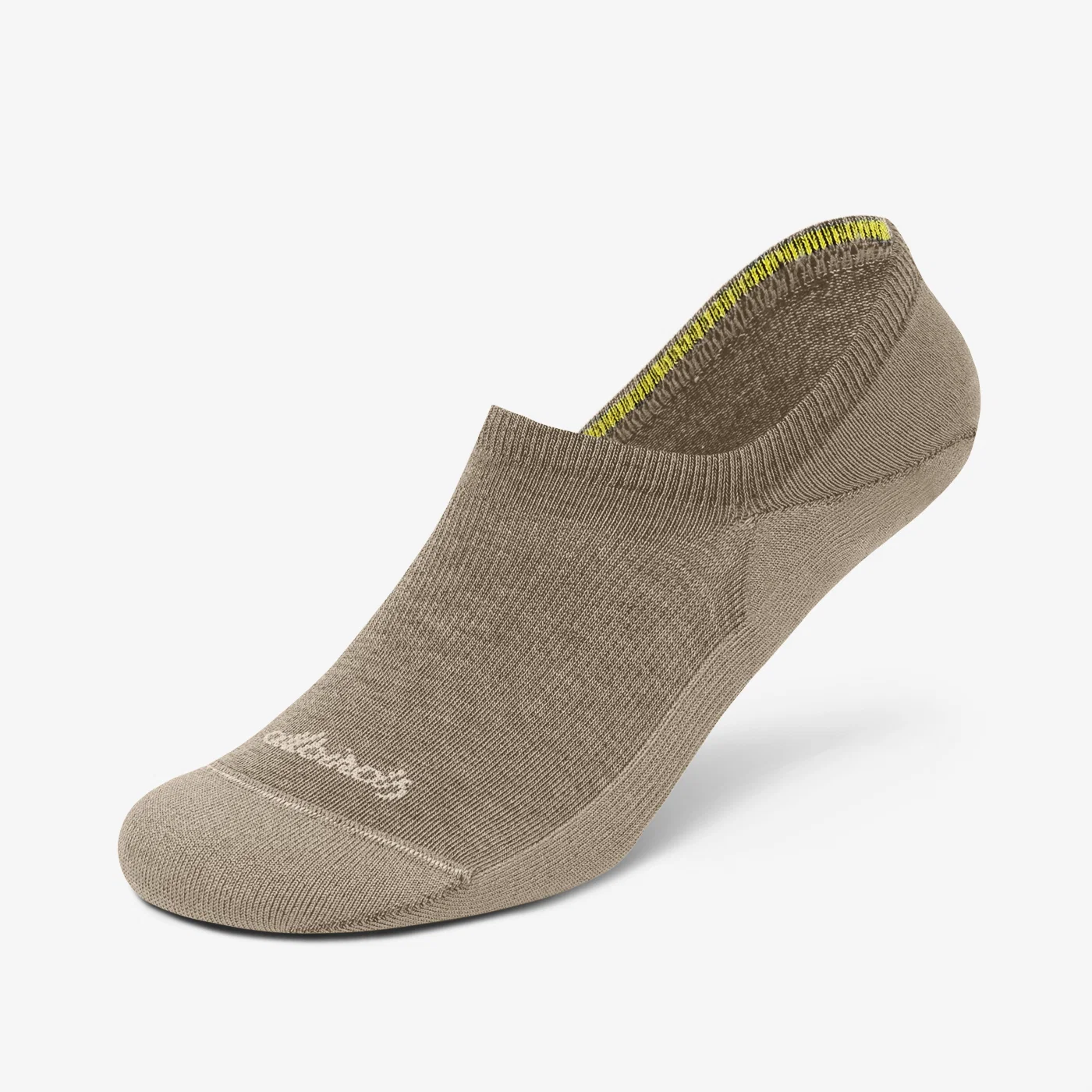
On one tested product page, the webpage version was 400×400. Source Image Finder recovered a verified 1400×1400 public version of the same image.
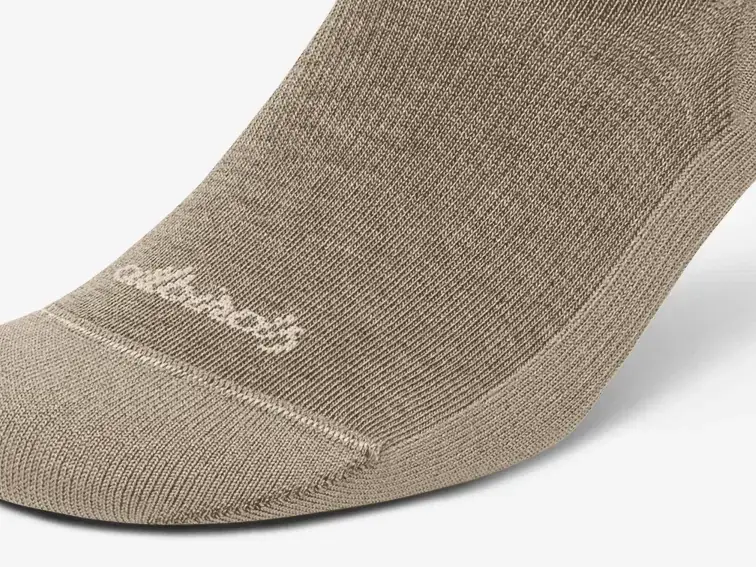
Detail view: drag the divider to compare knit texture, lettering and the toe seam. Use the links below to open either complete image.
Detail crop: showing 50% webpage file and 50% recovered source.
No AI upscaling. The 1400×1400 image is a real public file from the website, not an enlarged copy of the 400×400 image. This detail comparison uses the same crop from both files without sharpening or generating pixels. Learn how higher-resolution recovery works →
No. Source Image Finder is web-based. Paste a public webpage URL into the scanner in your browser; there is no extension or app to install. If images are available only inside a page that is open in your own signed-in browser, a local browser extension may be a better fit. Source Image Finder does not use your browser session or access private pages.
Yes. Source Image Finder runs in the browser and the scanner is designed to work on smaller screens, so there is no extension to install on a phone or tablet. Large result sets and ZIP downloads may still be easier to review on a desktop computer.
A website image extractor finds image sources and URLs from a webpage so you can review or download the files. A simple image downloader may focus only on saving visible images. Source Image Finder combines both jobs: it checks standard images, responsive image sources, lazy-loaded images, supported CSS backgrounds, and larger public versions when available, then lets you choose what to download.
No. Source Image Finder renders the public page in a browser and performs a limited scrolling pass, which can reveal many JavaScript-rendered and lazy-loaded images. It does not click through every carousel, open every tab, or scroll an infinite feed forever. Sites can also block automated access or require interactions the scanner cannot perform, so some images can still be missed.
Not from an entire website automatically. Scan Single Page processes one public webpage at a time. If you already know several page URLs, use Multiple URLs. To discover and process products across a supported public ecommerce store, use Store Catalog.
It groups different versions of the same image and leaves tiny files out of the recommended selection. You can review the results and choose exactly what to download.
Yes. Review the results, filter them, compare verified versions, and select the files you want before downloading.
Yes. Scan Single Page is free and does not require signup. Reasonable hourly and daily limits apply. If you hit a limit, the scanner tells you when you can try again. Paid plans get higher free allowances, and paid users can choose to continue for 2 credits per scan. Credits are never spent without confirmation.
Product pages, blog posts, portfolios, landing pages, and other publicly accessible webpages can all be scanned. The page must be reachable without a login or other access control.
Source Image Finder downloads the actual public files it finds. If a larger verified version exists, you can download it instead of the smaller webpage image. Resize and format conversion are optional.
No. Source Image Finder finds and verifies files that already exist on the public website or its image delivery system. It does not generate extra image detail or invent pixels.
No. Being able to download an image does not mean you have permission to reuse it. Copyright, license terms, a website's terms of service, privacy or publicity rights, and other rules can still apply. A robots.txt file is not permission to reuse an image. Check the rights and rules that apply to your intended use.
No. Source Image Finder is designed for public webpages and publicly accessible files. It does not bypass authentication, CAPTCHAs, paywalls, or other access controls.